About Subtitles
RoadMovie lets you easily add subtitles to your videos. It can create both hard coded and soft coded subtitles depending on your needs and your target device. Soft subtitles will be the perfect choice for any Apple device like the iPad, iPhone, iPod or Apple TV. Hard coded subtitles will “burn” into the video track and will play on any device like a PS3 or Nintendo Wii for example. It supports the major subtitle file formats like SubRip (.srt), SubViewer 1 & 2 (.sub), SubStation Alpha (.ssa/.ass) and MicroDVD.
Adding Subtitles
First you need to find a proper subtitle file in one of the formats described above. RoadMovie has a built-in subtitle search engine that will help you find subtitle files in a snap. It will use the metadata title to search and when you have found a proper file it will download, unarchive and add it to your movie automagically!
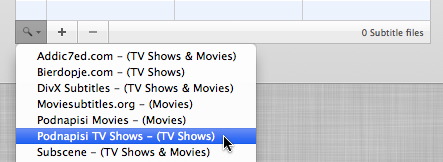
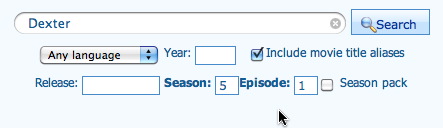
In this example we are looking for subtitles in Swedish for a Dexter episode. RoadMovie will pre-fill the search fields and do a search for you.
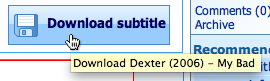
When we have found the subtitle file in the desired language we just click the download button and let RoadMovie handle the rest.
When the file has downloaded and unarchived, RoadMovie will ask you if you want to add it to the movie.
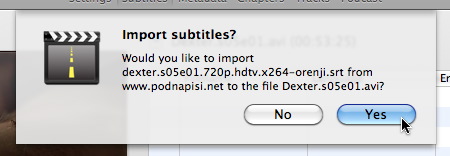
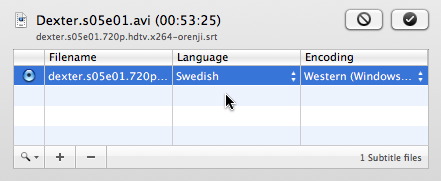
Go ahead and click yes and you now have a Swedish subtitle track for your Dexter episode. Easy as pie! You can easily add additional subtitle search sites under Preferences...
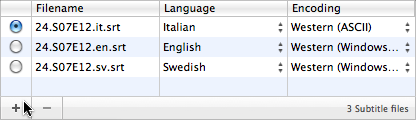
If you already had a subtitle file/files that was located in the same folder as the source file there's a fair chance that RoadMovie already found it for you. If not, just click the + button and navigate to your subtitle file. This is what it might look like. RoadMovie found 3 subtitle files in the source file’s folder and added them automatically. It also guessed the language from the subtitle files name. You can easily change the language from the popups.
Now it’s time to preview the movie and see if everything is in sync.
Preview
Just hover the preview image and hit the play button.

You can now see the movie with subtitles and you can swap between the available languages in real-time. Neat, isn’t it.

Sync subtitles
If you find that the subtitles are out of sync you can move them backwards or forwards in time. Just toggle the Sync subtitles tool.
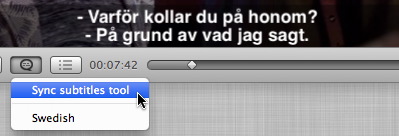
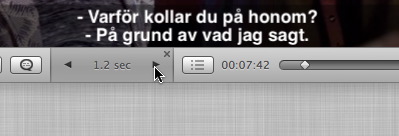
Now move the subtitles forward in time with the right button or backwards in time with the left button. Everything is updated in real-time so you can play your movie and see if the sync is working after your adjustments.
Learn more about the functions in the Preview window here...
About Subtitle Files
RoadMovie supports all major subtitle file formats like SubRip (.srt), SubViewer 1 & 2 (.sub), SubStation Alpha (.ssa/.ass) and MicroDVD.
All these subtitle files are actually text files. You can open one in Text Edit or your favorite text editor and have a look.
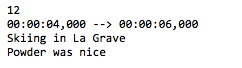
.srt (SubRip) subtitles looks like this:
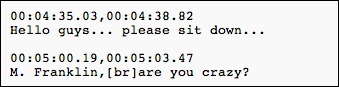
.sub (SubViewer 1 & 2) subtitles looks like this:
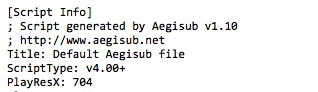
.ssa/.ass (SubStation Alpha) subtitles looks like this:
MicroDVD subtitles looks like this:
