About Metadata
iSubtitle supports iTunes/QuickTime metadata tagging. Metadata tags describe your movie's content in a fashion similar to id3 tags for mp3 music. iSubtitle will automatically fetch metadata for you by parsing the movie filename. Very convenient! The metadata is then used by iTunes, iPod, iPhone and so on. Starting with version 2.7, we use TMDb (themoviedb.org) as the source for finding metadata.
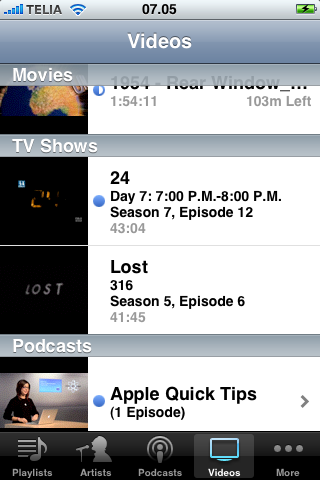
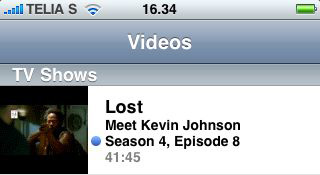
This is how a metadata tagged TV Show looks like on your iPhone/iPod touch.
Adding Metadata to your Movie
Adding metadata is easy. Hit the Metadata tab in the drawer.

iSubtitle has already filled in some of the metadata fields by parsing the filename in a smart way. It can usually find all metadata needed if the filename gets parsed properly. If something went wrong you can just edit the title of the movie and hit the reload button to fetch new metadata.
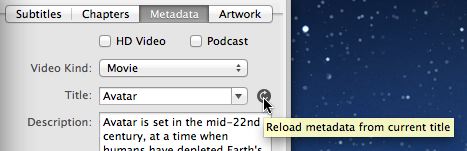
If several possible titles are available you can select another one from the Titles combo box pull down menu.
HD Video
iSubtitle will check if your movie is in HD resolution upon import and check the HD Video checkbox if that’s the case. If the movie height is larger or equal to 720 pixels or if the width is larger or equal to 1280 pixels the video is considered HD.

Podcast
You can also mark the movie with the podcast metadata tag if wanted.

Genre
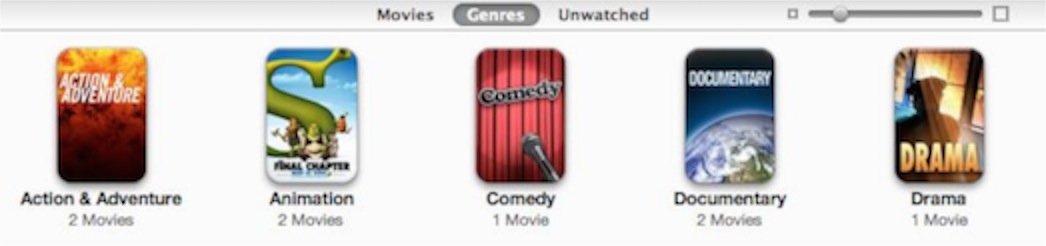
Genre will be automatically fetched for TV shows. You can enter whatever genre you like or select one from the pre-defined genres in the list. If you choose a genre from the list it will correlate with the genres found in iTunes. This is what it might look when browsing by genre tagged movies in iTunes.
Video kind
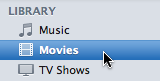
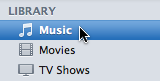
First you will be presented with a popup where you can select which kind of video you are working with. You have 3 options, each will affect where the movie ends up in iTunes or on your portable device. There's Movie, TV Show and Music Video.
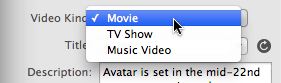
If you select Movie your file will be found under the Movies section in your iTunes Library. TV Show will sort under TV Shows and Music Video ends up in Music.

Content rating
You can specify a content rating for the movie. This will affect if the movie will be playable on a device with parental controls enabled. This is the same system that is used in iTunes for movies you rent or buy. Depending on the country you have selected in Preferences->Metadata you will be presented with a couple of content rating choices for that particular country.
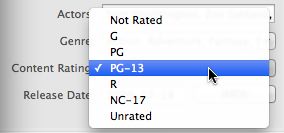
You can set the content rating of a music video as well.

This is what a music video with explicit content rating will look like in iTunes.

Movies
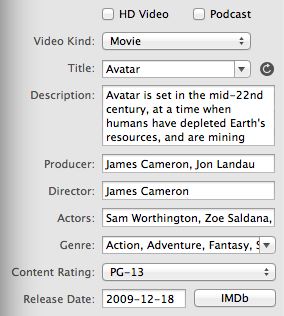
Movies will have the following metadata tags.
TV Shows
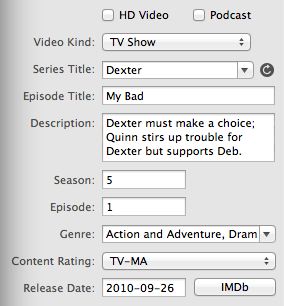
TV Show’s has the following metadata tags.
It will look something like this on an iPhone/iPod Touch for example.
Music Videos
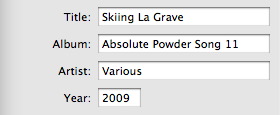
Music videos has the following metadata tags
Artwork
Artwork is also automatically fetched if it’s available. You can also use any frame from the movie as artwork metadata. Just hit the camera button.

IMDb
If there’s an IMDb link available in the fetched metadata you will see a button in the bottom right corner of the metadata pane. Use that to get even more details about your movie.